

Support
Our support team is ready to assist with any questions while using our apps.
The Announcement Bar allows you to display promotional messages at the top of your cart drawer. Use it to highlight free shipping thresholds, ongoing sales, or any important information you want customers to see.
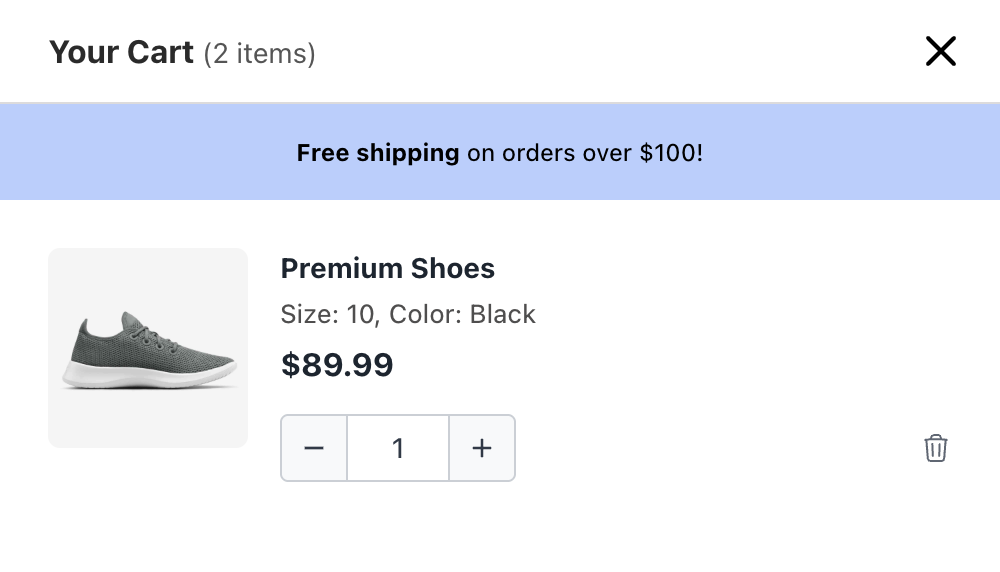
Toggle the Announcement Bar on or off using the Enable/Disable button at the top of the module settings. When enabled, your messages will appear at the top of the cart drawer.
Create and manage multiple promotional messages that will be displayed in the announcement bar.
Click Add Message to create a new announcement. Each message includes:
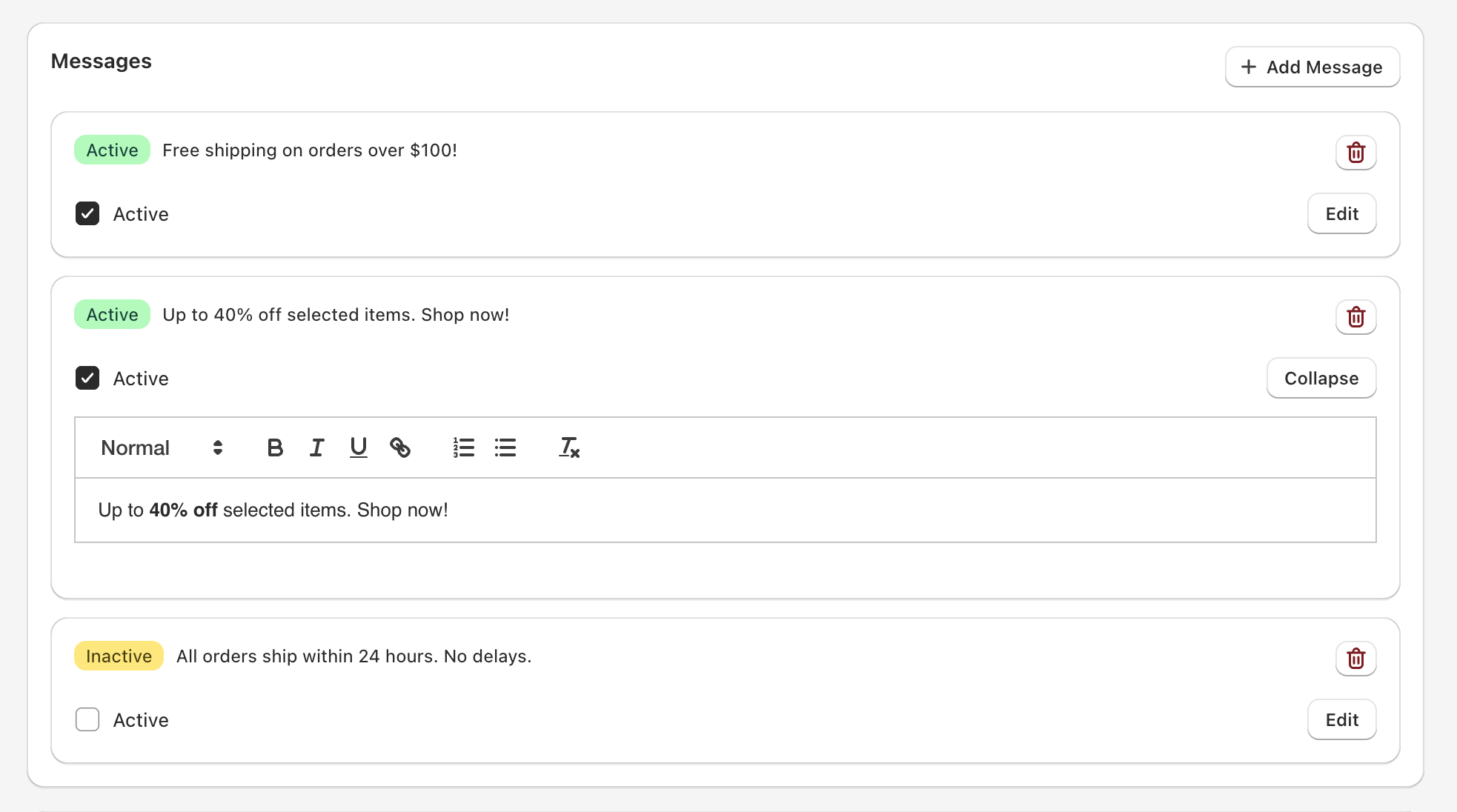
When you have multiple active messages, the announcement bar will cycle through them automatically. Choose how the transition between messages appears:
| Animation | Description |
|---|---|
| None (Instant) | Messages switch immediately without any animation |
| Fade (Alpha) | Messages fade in and out smoothly |
| Vertical Slide | Messages slide up/down when transitioning |
| Horizontal Slide | Messages slide left/right when transitioning |
As you make changes, the cart drawer preview on the right side updates in real-time, allowing you to see exactly how your announcement bar will appear to customers.