

Support
Our support team is ready to assist with any questions while using our apps.
The Checkout Button Module allows you to fully customize the appearance and behavior of the checkout button in your cart drawer. Add trust elements like security icons and payment logos to increase conversion.
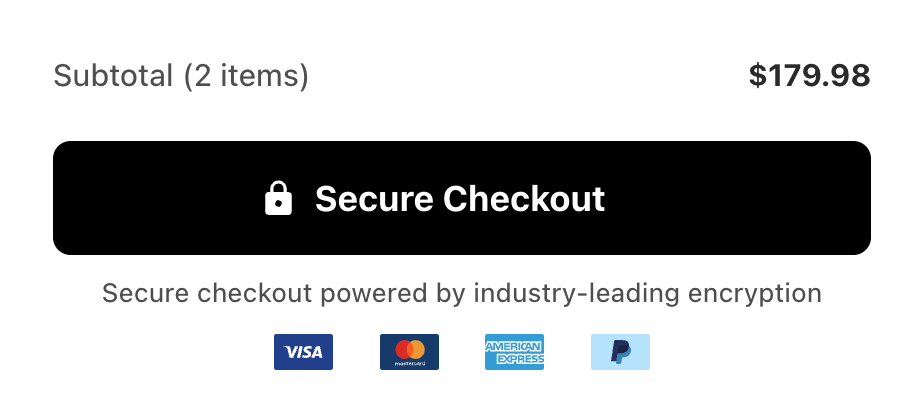
Toggle the Checkout Button on or off using the Enable/Disable button. When enabled, your customized checkout button replaces the default button in the cart drawer.
Customize the text displayed on the checkout button.
Common alternatives:
Customize the visual appearance of your checkout button.
Click Change colors to expand the color settings:
Control the roundedness of the button corners.
Lower values create sharp corners; higher values create rounded buttons.
Control the internal spacing of the button.
Higher values create a larger, more prominent button.
Add visual elements to your checkout button.
Display a lock icon before the button text to indicate secure checkout.

Display an arrow icon when customers hover over the button, indicating the action will proceed forward.

Enable smooth hover animations for a more polished, interactive experience.
Add trust signals below the checkout button to increase customer confidence and conversion rates.
Display a reassurance message below the checkout button to increase customer confidence.
Examples:
Display accepted payment method logos below the button to reassure customers their preferred payment option is available.
Select which payment logos to display:
| Logo | Payment Method |
|---|---|
| Visa | Visa |
| Mastercard | Mastercard |
| Amex | American Express |
| PayPal | PayPal |
| Amazon | Amazon Pay |
| Bitcoin | Bitcoin |
| CB | CB (Carte Bancaire) |
| Cirrus | Cirrus |
| Delta | Delta |
| Direct Debit | Direct Debit |
| Discover | Discover |
| JCB | JCB |
| Klarna | Klarna |
| Maestro | Maestro |
| Solo | Solo |
| Switch | Switch |
| Visa Electron | Visa Electron |
| Western Union | Western Union |
Add your own payment method logos that aren’t in the default list.
This is useful for regional payment methods or newer providers not yet in the default list.