

Support
Our support team is ready to assist with any questions while using our apps.
The Upsells Module displays product recommendations inside the cart drawer to encourage customers to add more items to their order. Create rules to show relevant products based on cart contents, subtotal, or item count.
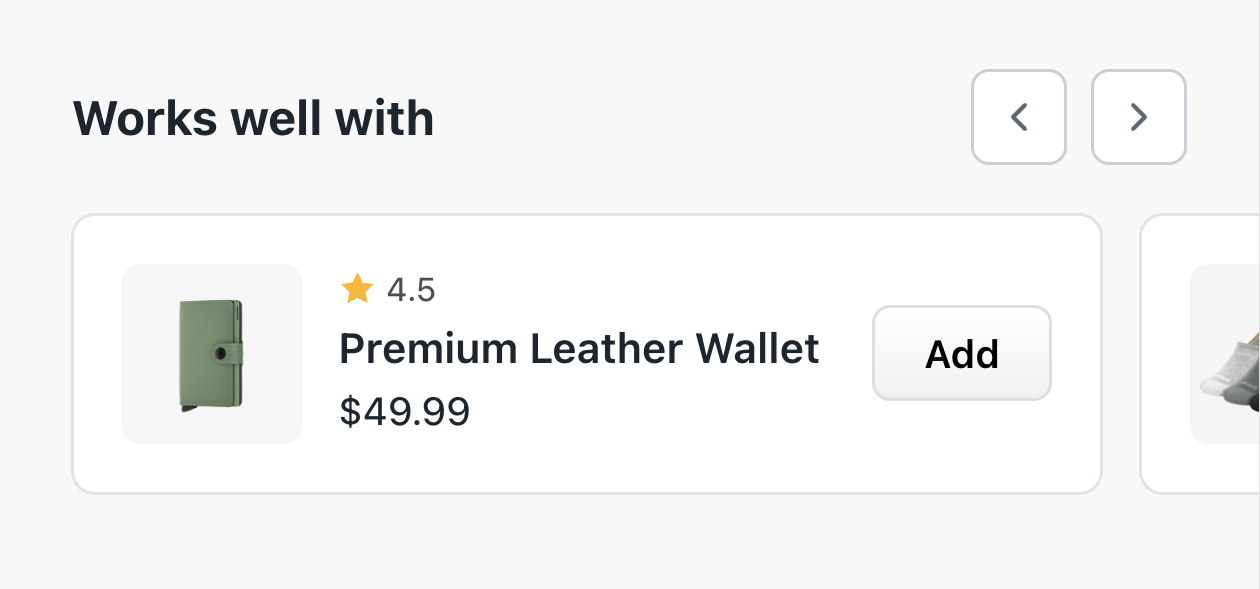
Toggle Upsells on or off using the Enable/Disable button at the top of the module settings.
Rules determine when and what upsell products to show. Each rule has two parts: When (the condition) and Then (the products to display).
Click Add rule to create a new upsell rule. You’ll be presented with a modal to configure the rule.
Each rule includes:
The “When” section defines what triggers the upsell to appear.
Show upsells based on what products are in the cart.
Applies to:
Match operators (for specific products/collections):
Show upsells based on the cart total amount.
Operators:
| Operator | Description |
|---|---|
| > | Greater than |
| ≥ | Greater than or equal to |
| = | Equal to |
| ≤ | Less than or equal to |
| < | Less than |
| Between | Within a range (min and max values) |
Example: Show upsells when cart subtotal is greater than $50.
Show upsells based on the number of items in the cart.
Uses the same operators as Cart Subtotal.
Example: Show upsells when cart has 3 or more items.
The “Then” section defines what products to display as upsells.
Select individual products to recommend. Search by product title or SKU.
Select entire collections. Products from these collections will be displayed as upsell suggestions.
The rules table displays all your configured upsell rules:
| Column | Description |
|---|---|
| Rule | The rule name |
| When | Summary of the trigger condition |
| Then | Summary of what products will be shown |
| Status | Enabled or Draft |
| Actions | Edit, duplicate, or delete |
Choose how upsell products are displayed in the cart drawer:
Products are displayed in a horizontal carousel that customers can swipe or scroll through. Best for:
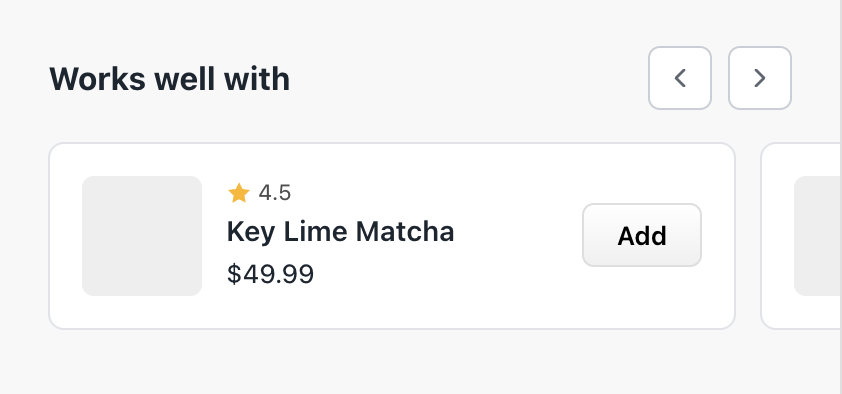
Products are displayed in a vertical list, one per row. Best for:

If you’ve recently added products to your Shopify store, click Sync products in the rule editor to refresh the product list. This ensures all your latest products are available for selection.